How to Download Driving Licence via DigiLocker, Step-by-Step
28 April, 2026
If you have ever stood at a traffic checkpoint, frantically scrolling through your phone trying to prove you have a valid driving licence, you already understand why getting your DigiLocker driving licence download right matters. The good news is that the process is simpler than most people expect, and once it is set up, you will never need to carry your physical DL card again.
This guide covers everything you need to complete your DigiLocker driving licence download successfully, fix common issues, and understand exactly how and when you can use your digital DL.
What Is DigiLocker and How Does It Connect to Your Driving Licence?
DigiLocker is an official cloud-based document platform developed by the Ministry of Electronics and Information Technology (MeitY). It acts as a secure digital vault for government-issued documents, including your driving licence, Aadhaar, PAN card, vehicle registration certificate or download vehicle registration certificate (RC), and more.
When you perform a DigiLocker driving licence download, DigiLocker fetches your driving licence data in real time directly from the Ministry of Road Transport and Highways (MoRTH) national Sarathi database, so it is not merely a static PDF. The document is live, verified, and tied to the official government record.
This is precisely why a DigiLocker DL download carries legal weight. Under the Motor Vehicles (Amendment) Act, 2019, and the Information Technology Act, 2000, documents on DigiLocker are legally equivalent to their physical counterparts. You can show your DigiLocker driving licence to traffic police, submit it for KYC at a bank, or use it for vehicle rental, all without a physical card.
Before You Begin: What You Need
Before starting your DigiLocker driving licence download, make sure you have the following ready:
An active DigiLocker account. If you do not have one, you can sign up at digilocker.gov.in or through the DigiLocker app using your mobile number and Aadhaar card.
Your Aadhaar-linked mobile number. OTP verification is mandatory to log in and to fetch documents.
Your driving licence number. This follows the format: [State Code][RTO Code][Year][Unique Number], for example, MH0120190012345. If you do not have your DL number handy you may need to apply for a duplicate driving licence, your DL card, any RTO SMS, or your Parivahan driving licence services account are good places to retrieve it.
Your date of birth. You will need this to authenticate the DL fetch request.
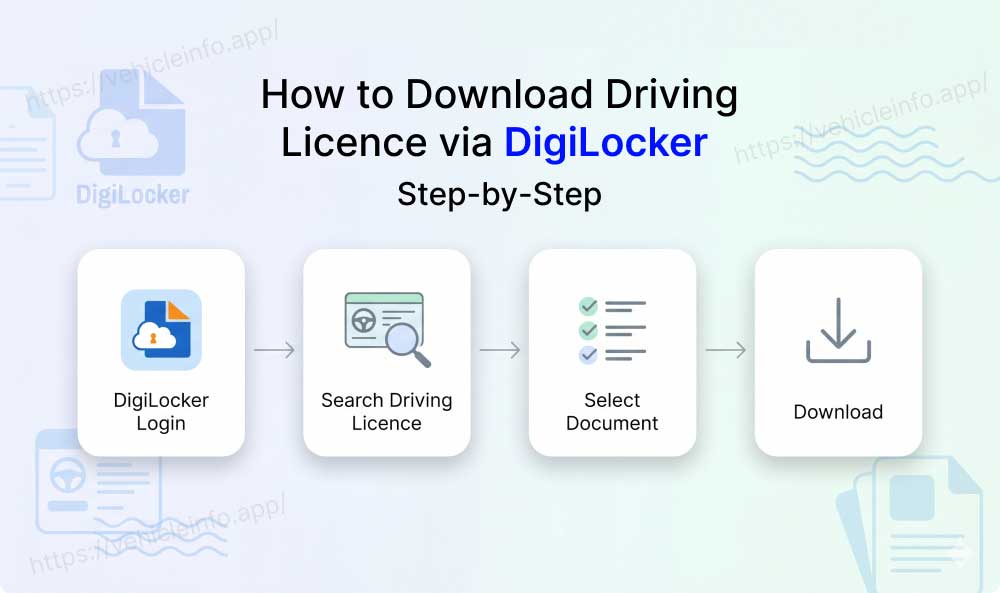
Step-by-Step: DigiLocker Driving Licence Download
The process of downloading your driving licence on DigiLocker is simple and straightforward.
Step 1: Open DigiLocker
Visit digilocker.gov.in on your browser or open the DigiLocker app on your Android or iOS device. The app is available free of charge on both platforms.
Step 2: Log In or Sign Up
If you already have a DigiLocker account, log in using your registered mobile number and security PIN, followed by an OTP sent to your Aadhaar-linked number.
If you are new to DigiLocker, click Sign Up, enter your mobile number, complete OTP verification, set a security PIN, and then link your Aadhaar card. The linking process requires a one-time Aadhaar OTP authentication.
Step 3: Navigate to the Search Documents Section
Once logged in, tap or click on Search Documents (sometimes listed as Get More Documents on the app). This is the gateway to fetching government-issued documents that are not yet in your locker.
Step 4: Search for Driving Licence
In the search bar, type "Driving Licence." You will see a result listed under Ministry of Road Transport and Highways. Click or tap on it.
Step 5: Enter Your DL Details
A form will appear asking for your driving licence number and date of birth. Enter both carefully, paying attention to the format, dates should typically be in DD/MM/YYYY format.
Step 6: Authenticate and Fetch
After submitting your details, DigiLocker will retrieve your driving licence from the national Sarathi database. You may receive an OTP for additional verification depending on your account settings.
Once the fetch is successful, your DigiLocker DL download is complete. The driving licence now appears under the Issued Documents section in your locker.
Step 7: Download as PDF
To save a DigiLocker DL PDF of your driving licence, open the document in your locker and tap the download icon. A digitally signed PDF will be saved to your device. This DigiLocker DL PDF includes your name, photo, date of birth, DL number, vehicle class authorisations, validity period, and a QR code for live verification.
How to Link Aadhaar to DigiLocker for DL
If you skipped Aadhaar linking during sign-up, your DigiLocker driving licence download may not work correctly. Here is how to link Aadhaar to DigiLocker for DL access:
1. Go to DigiLocker Settings or Profile.
2. Click Link Aadhaar.
3. Enter your 12-digit Aadhaar number.
4. Complete OTP verification on your Aadhaar-registered number.
5. Once linked, DigiLocker will be able to pull documents tied to your Aadhaar identity from government databases.
For most post-2015 driving licences, once Aadhaar is linked, your DL details are populated automatically without needing to manually enter your DL number each time.
Is DigiLocker DL Valid at Traffic Checks?
This is one of the most frequently searched questions around DigiLocker driving licence download, and the answer is a clear yes.
A DigiLocker DL is valid at traffic checks across India. The MoRTH circular (RT-11036/93/2018-RS) explicitly instructs all traffic enforcement authorities to accept documents presented via DigiLocker and mParivahan. When an officer scans the QR code on your DigiLocker DL, it connects to the national database and displays your live record on their device.
Keep the app open and display the actual document, not a screenshot. A screenshot of your DigiLocker driving licence download does not carry legal standing. In situations where DigiLocker is not loading properly many users use the mParivahan app instead as both platforms are officially recognised by the Ministry of Road Transport and Highways (MoRTH).
Driving Licence Not Showing in DigiLocker Issued Documents
One of the most common problems people face when attempting a DigiLocker driving licence download is that the licence simply does not appear in their issued documents. Here are the main reasons and how to resolve each one.
The DL is not yet in the Sarathi national database
Older licences issued before 2012 may not be fully digitised. In this case, visit your issuing RTO and request digitisation of your records. Once updated, your DigiLocker DL download should work within 7 to 15 days.
Name mismatch between Aadhaar and DL records
If the name spelling differs across documents, the system cannot match them. Correct the name discrepancy either at the RTO or through the UIDAI Aadhaar update process.
Mobile number not registered in Sarathi
Log in to parivahan.gov.in and update your mobile number under DL Services before attempting the DigiLocker driving licence download again.
Wrong DL number entered
Double-check each digit, including the state and RTO code prefix.
Temporary server issue
DigiLocker occasionally undergoes maintenance. Wait 12 to 24 hours and retry your DL download from DigiLocker.
Fetch Driving Licence DigiLocker: What Happens Behind the Scenes
When you fetch driving licence DigiLocker data, here is what actually happens:
DigiLocker sends a secure, authenticated API request to the Vahan/Sarathi national database maintained by MoRTH. The database verifies the DL number and date of birth combination, then returns the digitally signed document to your DigiLocker account. The entire process takes seconds.
Because the document is pulled live, any updates to your DL record, such as a renewal, address change, or new vehicle class endorsement, will be reflected the next time you view or re-fetch the document from your locker.
DigiLocker DL Download vs Parivahan DL Extract: What Is the Difference?
Both give you official access to your driving licence data, but there are key differences:
| Feature | DigiLocker DL Download | Parivahan DL Extract |
|---|---|---|
| Legal Validity | Fully valid under IT Act and MV Act | Valid as an official record extract |
| Real-time Verification | Yes, QR code verified live | No live QR on extract |
| Best For | Traffic checks, KYC, rental | Administrative or reference use |
| Format | Digitally signed PDF | Printable extract |
| Cost | Free | Free |
For day-to-day use, the DigiLocker driving licence download is the superior option. The Parivahan extract is better suited when someone explicitly requests a printed copy for paperwork.
How to Add Driving Licence to DigiLocker: Quick Recap
In case you want a fast summary of how to add driving licence to DigiLocker:
1. Log in to DigiLocker (app or website)
2. Go to Search Documents
3. Search for "Driving Licence" under MoRTH
4. Enter your DL number and date of birth
5. Authenticate and confirm
6. Your DL is now in your Issued Documents
That is the entire DigiLocker driving licence download process. Once added, it stays in your locker and updates automatically.
FAQs
1. Can I do a DigiLocker driving licence download without an Aadhaar card?
Ans: Aadhaar linkage is strongly recommended, as it enables automatic document pulling. However, you can still fetch your DL manually by entering your DL number and date of birth even without completing Aadhaar linkage, provided your DL exists in the national Sarathi database.
2. Is the DigiLocker DL PDF valid for international travel or car rentals abroad?
Ans: For international use, you need an International Driving Permit (IDP). However, for domestic car rentals and ride-share platforms in India, the DigiLocker DL download is widely accepted.
3. My DigiLocker driving licence download shows an old photo. Is that normal?
Ans: Yes. The photo displayed is the one stored in the Sarathi database at the time your DL was issued. If you need an updated photo, you will need to visit your RTO and request a fresh DL card issuance. Once updated in the database, your DigiLocker DL will reflect the new photo.
4. How long does the DigiLocker DL stay in my locker?
Ans: The document stays in your issued documents section indefinitely. However, because it is fetched live, if your DL validity expires, the document will show the expired status. Renew your DL first, wait for the database to update, and then re-fetch for an updated DigiLocker driving licence download.
5. Can I download my DigiLocker DL PDF multiple times?
Ans: Yes. There is no limit on how many times you can download a DigiLocker DL PDF. Each download fetches a fresh, digitally signed version of the document.
6. What if DigiLocker is not working and I need to show my DL urgently?
Ans: If DigiLocker is temporarily unavailable, use the mParivahan app as an alternative. Both platforms provide legally valid digital driving licence access, and traffic police are equipped to verify documents on both.
7. Is the DigiLocker DL download free?
Ans: Completely free. There are no charges of any kind to fetch, store, or download your driving licence via DigiLocker.