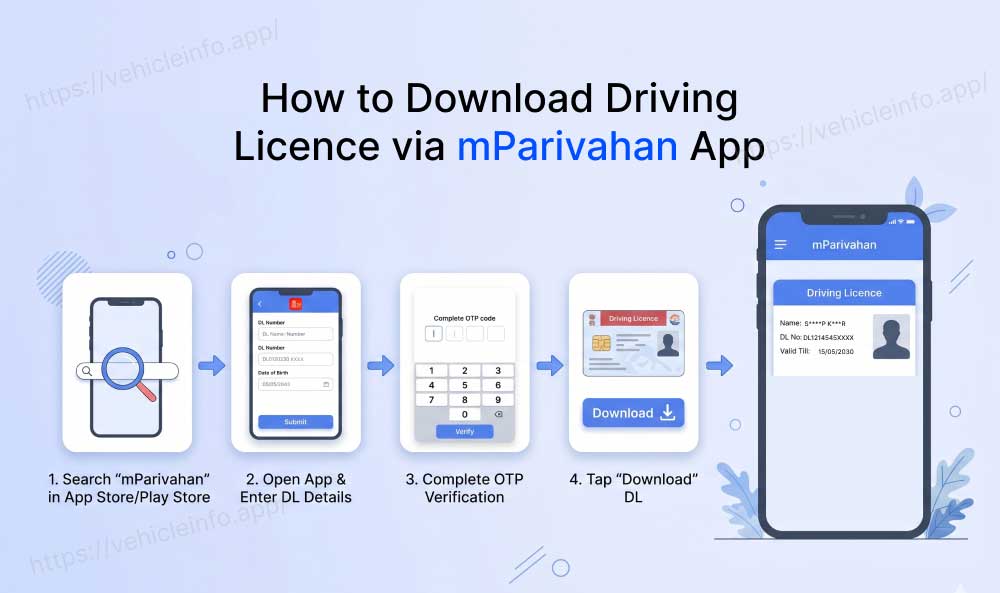
How to Download Driving Licence via mParivahan App
28 April, 2026
You are at a toll plaza. The officer wants to check your documents. Your wallet is at home. The good news: your phone is in your hand, and with the mParivahan app, your driving licence is right there on the screen. The mParivahan driving licence download process takes about five minutes to set up and saves you from a whole category of problems forever.
This guide covers how to set up mParivahan app DL access from scratch, how to handle common issues like mParivahan DL not showing, and exactly what you need to know before you show DL on mParivahan to police.
What Is mParivahan?
mParivahan is the official mobile application of the Ministry of Road Transport and Highways (MoRTH). It is available for free on both Android (Google Play Store) and iOS (Apple App Store). The app connects directly to the Vahan and Sarathi national databases, which means every document you access on it is pulled in real time from government records.
The mParivahan driving licence download is technically a virtual DL card display rather than a saved PDF file. Your DL appears as a digital card within the app dashboard, complete with your photo, name, DL number, vehicle class authorisations, validity period, and a unique QR code that traffic officials can scan to verify your credentials instantly.
The legal backing is solid. MoRTH circular RT-11036/93/2018-RS mandates that traffic enforcement authorities across India accept mParivahan DL as a valid document equivalent to the physical card, making the mParivahan app DL a genuinely useful alternative to carrying your wallet everywhere.
What You Need Before You Begin
To complete the mParivahan driving licence download successfully, keep these ready:
Your DL number. The format is [State Code][RTO Code][Year][Unique Number]. For example: DL0120200056789. Find it on your physical DL card, any SMS from your RTO, or via your Parivahan login. If you have lost your physical licence and cannot retrieve the number you may need to start the duplicate DL application process through your state RTO portal.
Date of birth. Used for verification.
An active mobile number. For OTP during registration.
The mParivahan app. Download it free from Google Play or the App Store. Search for "mParivahan": look for the app by the National Informatics Centre (NIC).
Optional: Vehicle chassis number or engine number. These are needed only if you want to add your vehicle's Registration Certificate (RC) to the app alongside your DL. They are not required for DL access.
How to Set Up mParivahan App for Driving Licence Access
Step 1: Download and Install mParivahan
Search for "mParivahan" on the Google Play Store or Apple App Store and install the official app. It is free to download and use.
Step 2: Register and Set Up Your Profile
Open the app. You will be prompted to register using your mobile number. Enter your number, receive an OTP, and complete verification.
Step 3: Set Your mParivahan MPIN
After registration, you will be asked to set an mParivahan MPIN, a four or six-digit PIN used to log in to the app each time. Choose something memorable but secure. The mParivahan MPIN setup is a one-time process and is your primary login method going forward.
Step 4: Tap on "My DL" on the Home Screen
The mParivahan home screen has two main sections: My RC (for your vehicle registration certificate) and My DL (for your driving licence). Tap on My DL.
Step 5: Enter Your DL Details
A form will ask for your DL number and date of birth. Enter these carefully. The DL number is case-sensitive in some versions of the app.
Step 6: Verify and Confirm
After entering your details, the app will display a summary of your driving licence information pulled from the Sarathi national database. Review the details to ensure they are correct, name, photo, vehicle classes, and validity.
Step 7: Your DL Is Now on mParivahan
Tap Confirm or Save. Your mParivahan driving licence download is now complete. Your DL appears as a virtual card in the My DL section. The card includes a dynamic QR code that refreshes periodically to prevent misuse.
mParivahan DL Download Without Chassis Number
A common confusion is that the mParivahan app requires chassis and engine numbers to display your driving licence. That requirement applies only to adding your vehicle RC, not your DL.
To complete your mParivahan driving licence download, you only need your DL number and date of birth. No chassis number, no engine number, and no vehicle details are required at all. The mParivahan DL download without chassis number is fully supported.
How to Show DL on mParivahan to Police
Knowing how to show DL on mParivahan to police correctly makes all the difference during a roadside check.
1. Open the mParivahan app and log in with your MPIN.
2. Tap on My DL to bring up your virtual DL card.
3. Hand your phone to the officer, or display the QR code clearly.
4. The officer can scan the QR code using their official verification device, which connects to the national database and confirms your DL is genuine.
Keep your screen brightness high enough for easy scanning. Traffic police personnel are equipped with handheld scanners that read mParivahan QR codes. If an officer is unfamiliar with digital documents, politely point to the MoRTH circular that mandates acceptance of mParivahan DL.
Is mParivahan DL Valid in India?
Yes. The mParivahan DL is valid across India for all purposes where a physical DL is required during a roadside check. The Motor Vehicles (Amendment) Act, 2019, explicitly recognises documents on DigiLocker and mParivahan as legally equivalent to physical originals. This applies once you successfully apply for driving licence online and your DL is issued.
The QR code on your mParivahan virtual DL is the key to this validity. Unlike a screenshot or a photocopy, the QR code connects live to the government database when scanned, which means it cannot be forged or faked. This makes the mParivahan driving licence download arguably more secure than carrying a physical card.
However, it is worth noting that for non-traffic purposes, such as submitting a DL copy to a bank, HR department, or insurance company, a DigiLocker DL PDF or a Parivahan extract may be more appropriate, since those institutions typically need a document they can attach to a file.
mParivahan DL Not Showing: Common Causes and Fixes
If you are getting a blank screen or an error when attempting your mParivahan driving licence download, here are the most likely reasons:
Your DL is not in the Sarathi national database
Licences issued before 2012 may not be fully digitised. Visit your issuing RTO and request your records be updated in the national system.
You entered the DL number incorrectly
Recheck every character, including the state code and RTO code prefix. Even one wrong digit will cause a failed lookup.
Your date of birth in the database does not match what you entered
This can happen if the RTO recorded a different date. Check your Parivahan profile for the registered date of birth.
The app needs an update
An outdated version of mParivahan may have bugs that affect document loading. Update the app from the Play Store or App Store.
Server downtime
The mParivahan app relies on MoRTH servers that occasionally undergo maintenance. If your mParivahan app is not working, wait a few hours and try again.
Mobile number not registered with your DL record
If OTP delivery is failing, your mobile number may not be linked to your DL record in the Sarathi database. Log in to parivahan.gov.in and update your contact details under DL Services.
mParivahan vs DigiLocker: Which Should You Use for Your DL?
Both are official, both are free, and both are legally valid. But they serve slightly different use cases.
| Feature | mParivahan | DigiLocker |
|---|---|---|
| Primary Format | Virtual card in app | Digitally signed PDF |
| Best For | Roadside checks, quick verification | KYC, bank submissions, document filing |
| Internet Required | Yes, for QR scan | Yes, for live verification |
| PDF Download | No (virtual card only) | Yes |
| Ease of Use | Very quick on mobile | Slightly more setup |
| Legal Validity | Fully valid | Fully valid |
The ideal approach is to have both set up. You can also download driving licence online using DigiLocker or Parivahan when you need a PDF copy. Use mParivahan for daily roadside checks and DigiLocker when you need a downloadable PDF for formal submissions.
What to Do If mParivahan App Is Not Working
If the mParivahan app is not working and you need your DL urgently, here are your options:
1. Switch to DigiLocker for your driving licence access.
2. Access your DL via parivahan.gov.in and download a DL extract.
3. Check the app permissions on your phone, mParivahan needs access to your camera (for QR scanning) and storage. Ensure these are enabled.
4. Clear the app cache on Android: Settings > Apps > mParivahan > Storage > Clear Cache.
5. Uninstall and reinstall the app if the issue persists.
FAQs
1. How do I set up the mParivahan app for driving licence access if I have multiple DLs?
Ans: The mParivahan app allows you to store one driving licence at a time in the My DL section. If you have an LMV and a transport endorsement under the same DL number, they will all display under a single DL entry.
2. Can I use mParivahan without an internet connection?
Ans: You need an active internet connection to fetch and display your DL initially. Once loaded, the virtual card may be viewable briefly offline, but the QR code requires a live internet connection to function for officer verification. Always ensure your data connection is active when showing your DL to authorities.
3. Does mParivahan work for Learner's Licences?
Ans: Yes. You can add your Learner's Licence (LL) to mParivahan the same way as a permanent DL, using your LL number and date of birth. This is not possible on DigiLocker.
4. Is the mParivahan MPIN the same as my phone PIN?
Ans: No. The mParivahan MPIN is a separate PIN specific to the app. You set it during registration. Keep it different from your phone's screen lock PIN for added security.
5. Can someone misuse my DL if they screenshot my mParivahan screen?
Ans: The QR code on your mParivahan DL is dynamic, meaning it changes periodically. A static screenshot of the QR code cannot be used for verification, making it significantly harder to misuse your digital DL.
6. Do I need to update mParivahan after my DL is renewed?
Ans: After your renewal is processed and the Sarathi database is updated (typically 3 to 7 working days after renewal), open the My DL section and use the refresh option. This re-fetches your DL data with the updated validity period.
7. Is the mParivahan driving licence download really free?
Ans: Completely free. MoRTH does not charge for digital DL access on its official platforms. Avoid any third-party websites or apps that claim to offer mParivahan DL services for a fee.